How to empty cache and hard reload
First, go to the site that you're having issues with.
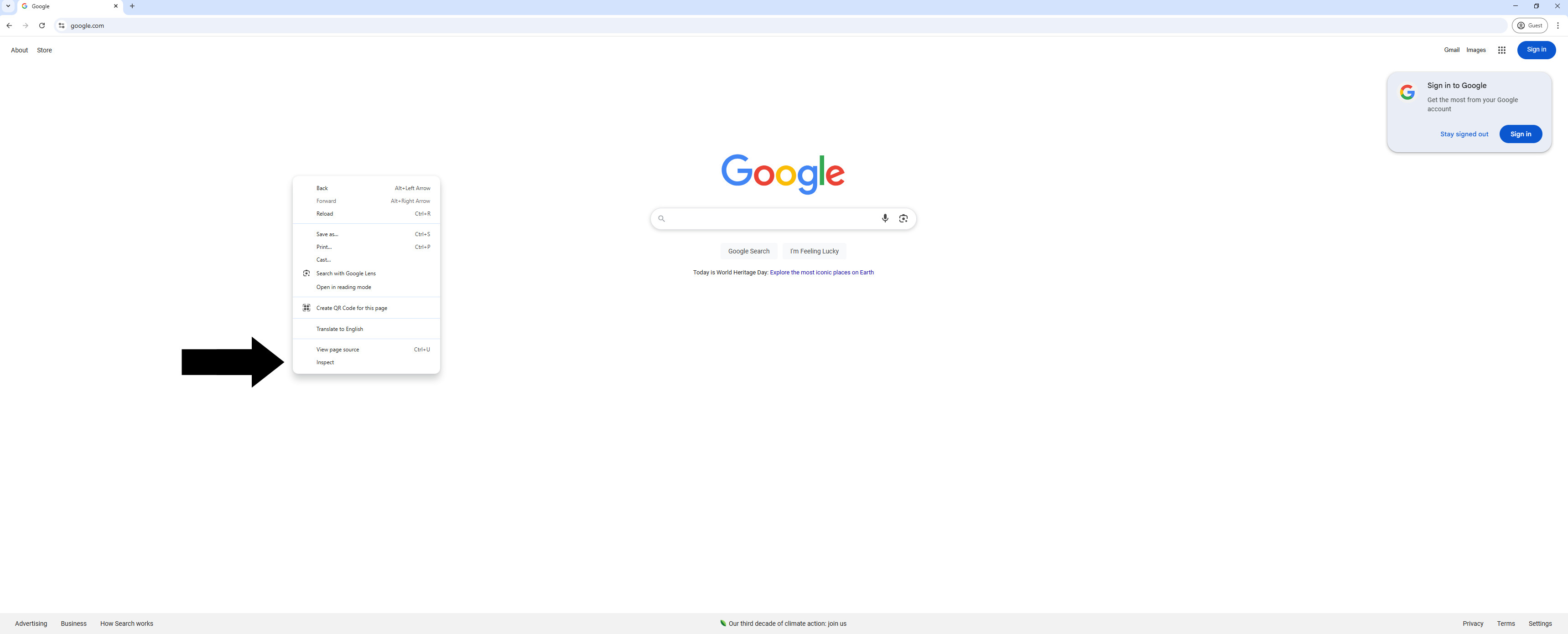
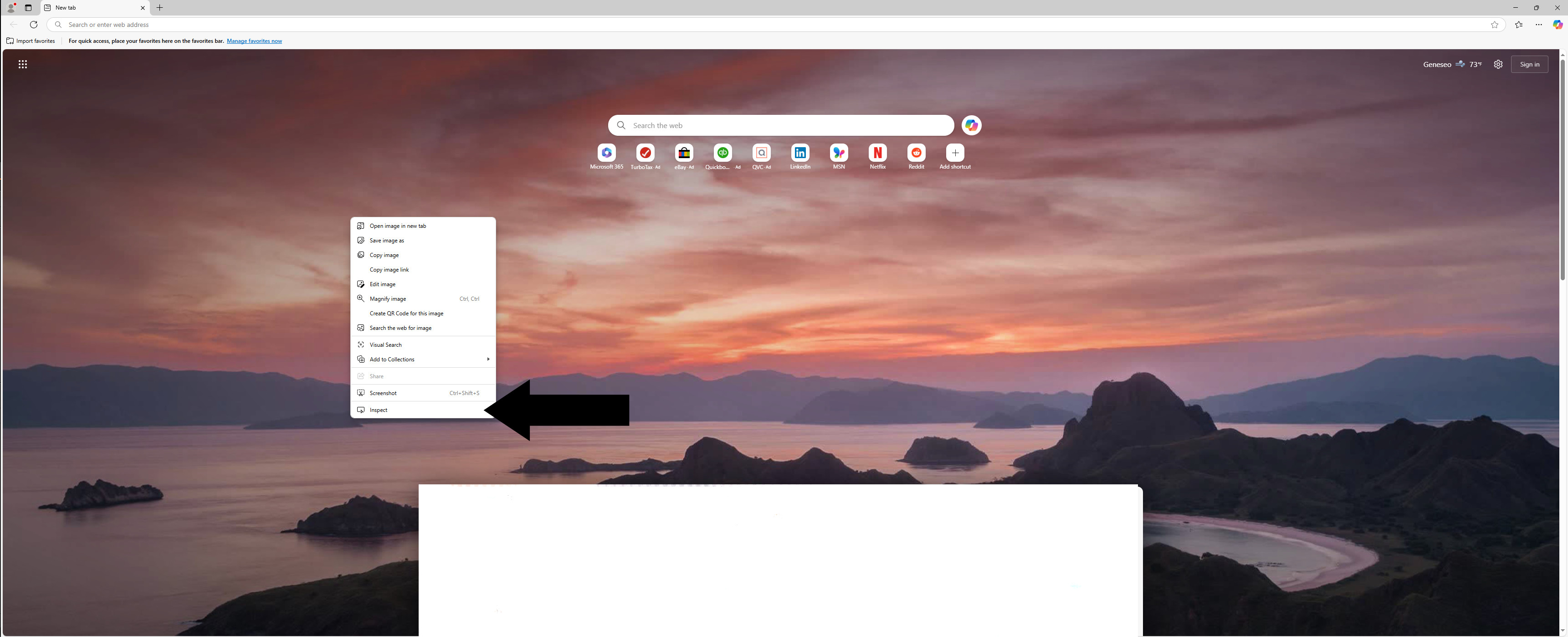
Then, right-click anywhere in the browser window.
You will see a menu pop up.
Click the "Inspect" option at the bottom of the menu.
In Chrome:
In Edge:
Alternatively, you can simply press the "F12" key on your keyboard. If you're using a laptop, you may need to hold the "FN" key at the same time.
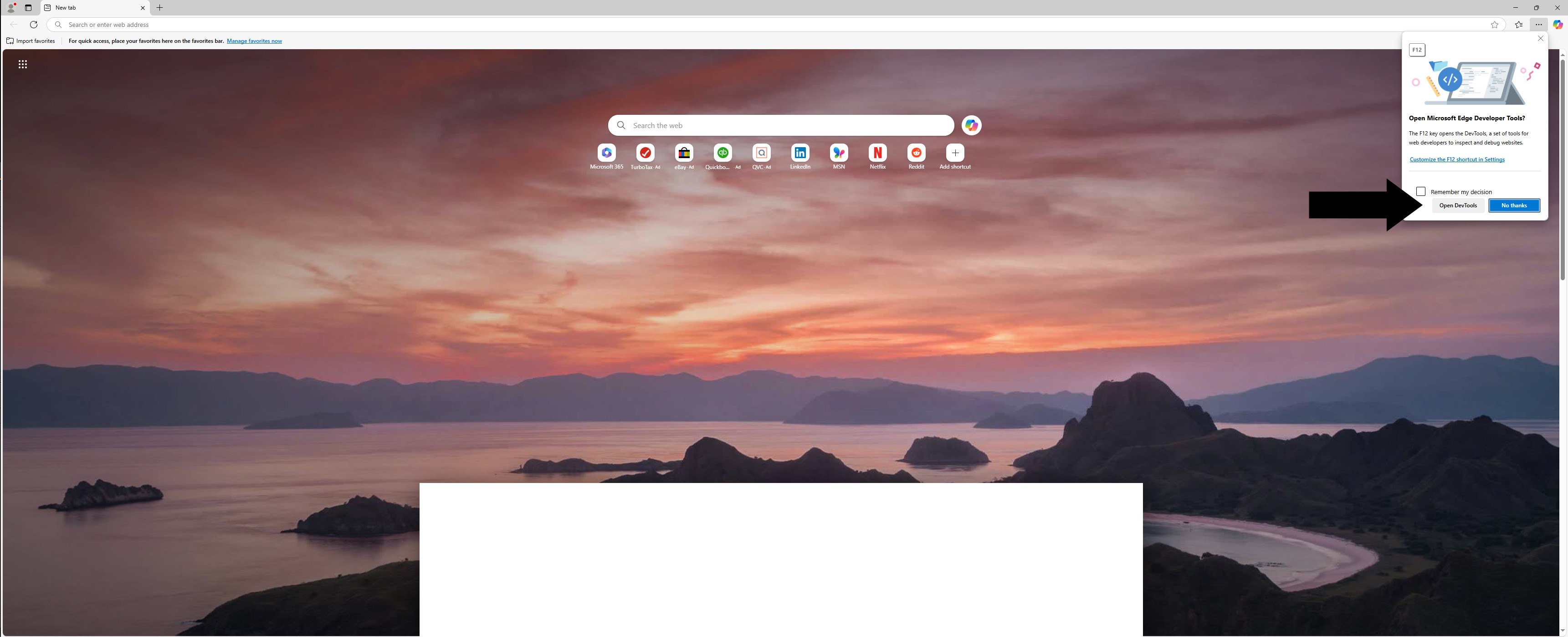
In Chrome, the Developer Tools panel will open immediately. In Edge, however, you'll need to interact with a pop-up first.
Click the "Open DevTools" button.
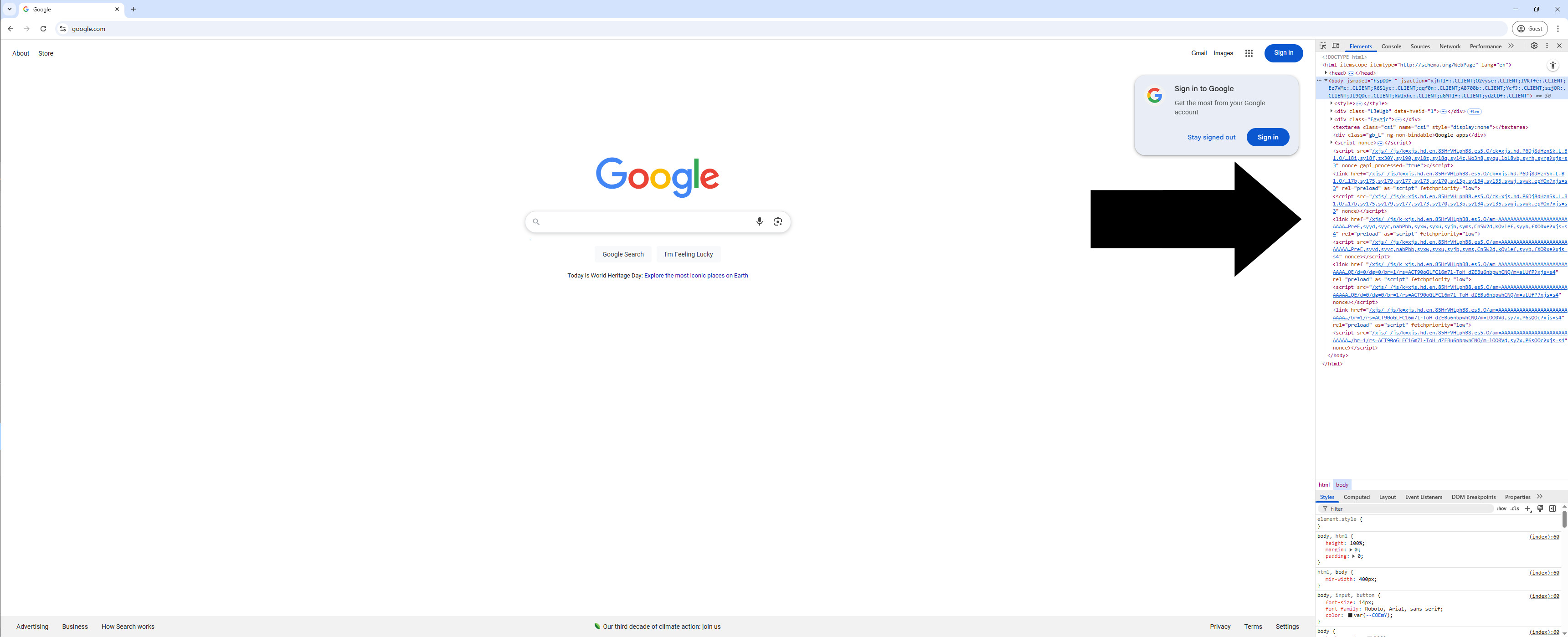
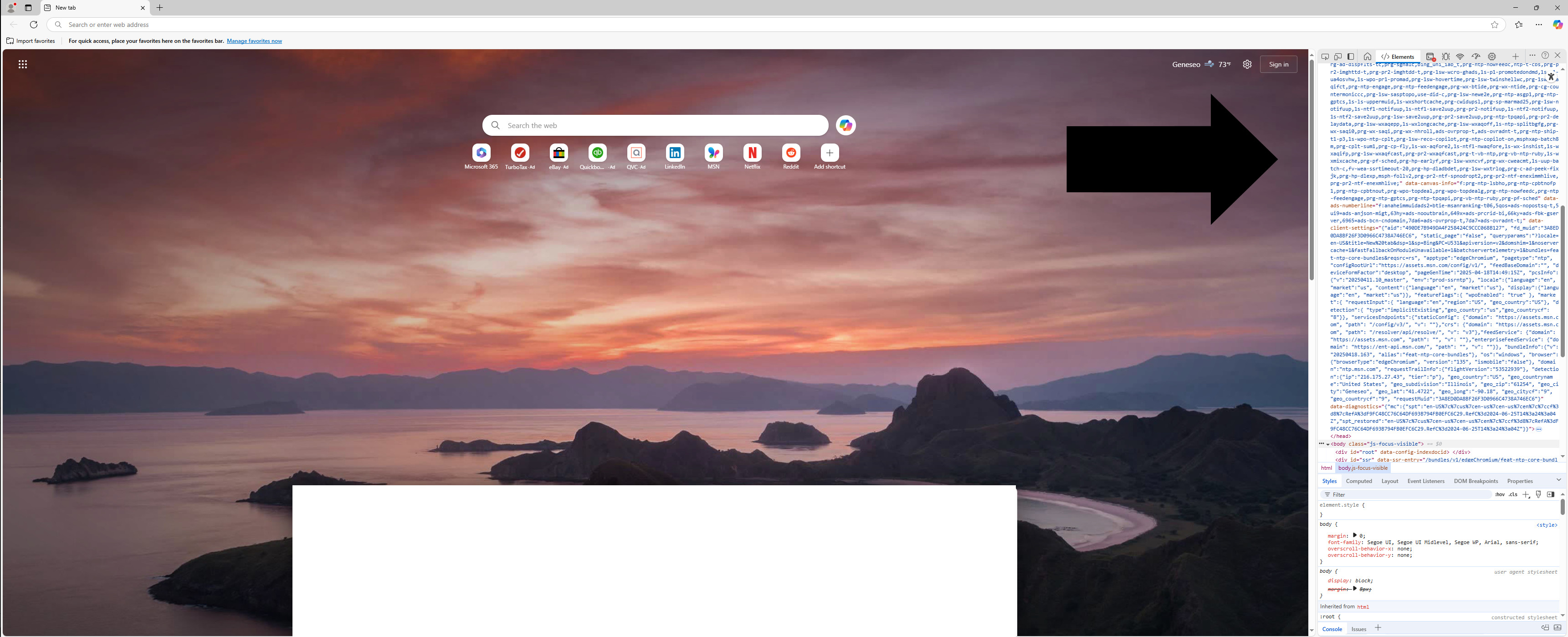
Whether you used the right-click method or pressed F12, you should now see the Developer Tools panel in your browser.
It should look like one of these:
Chrome:
Edge:
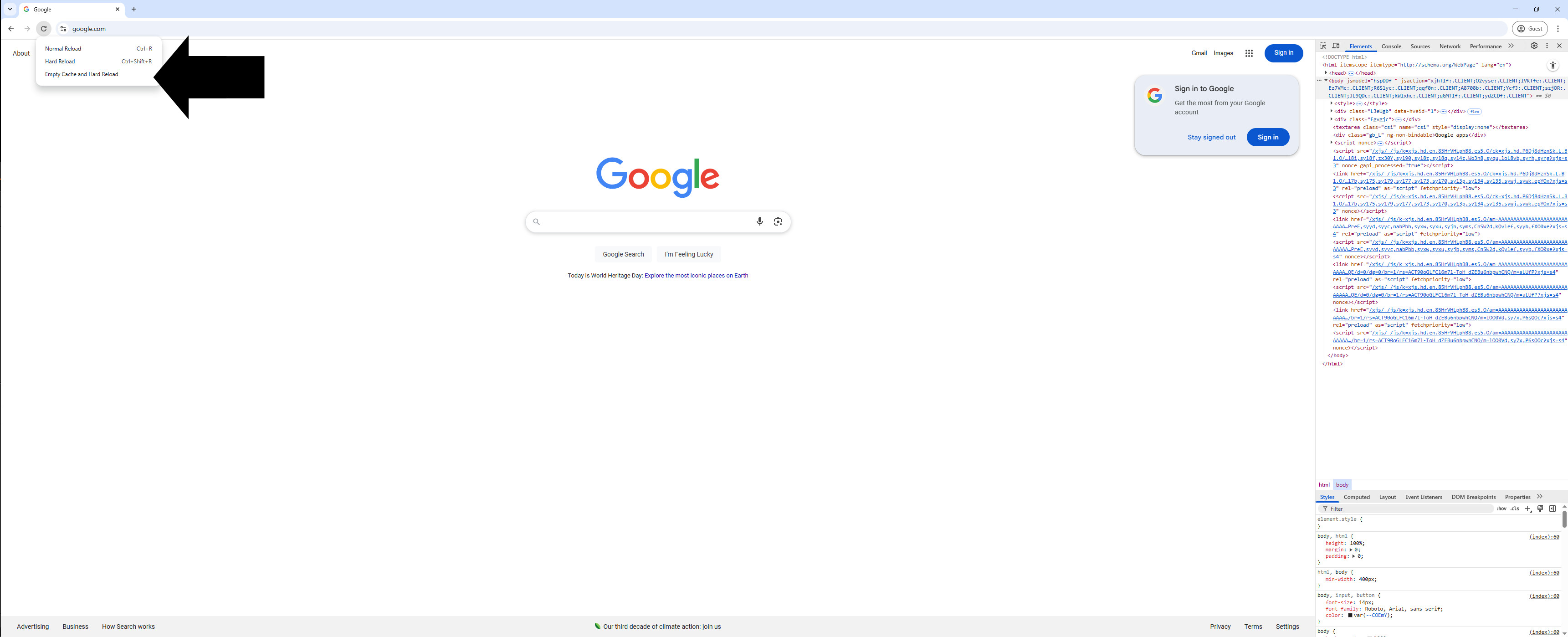
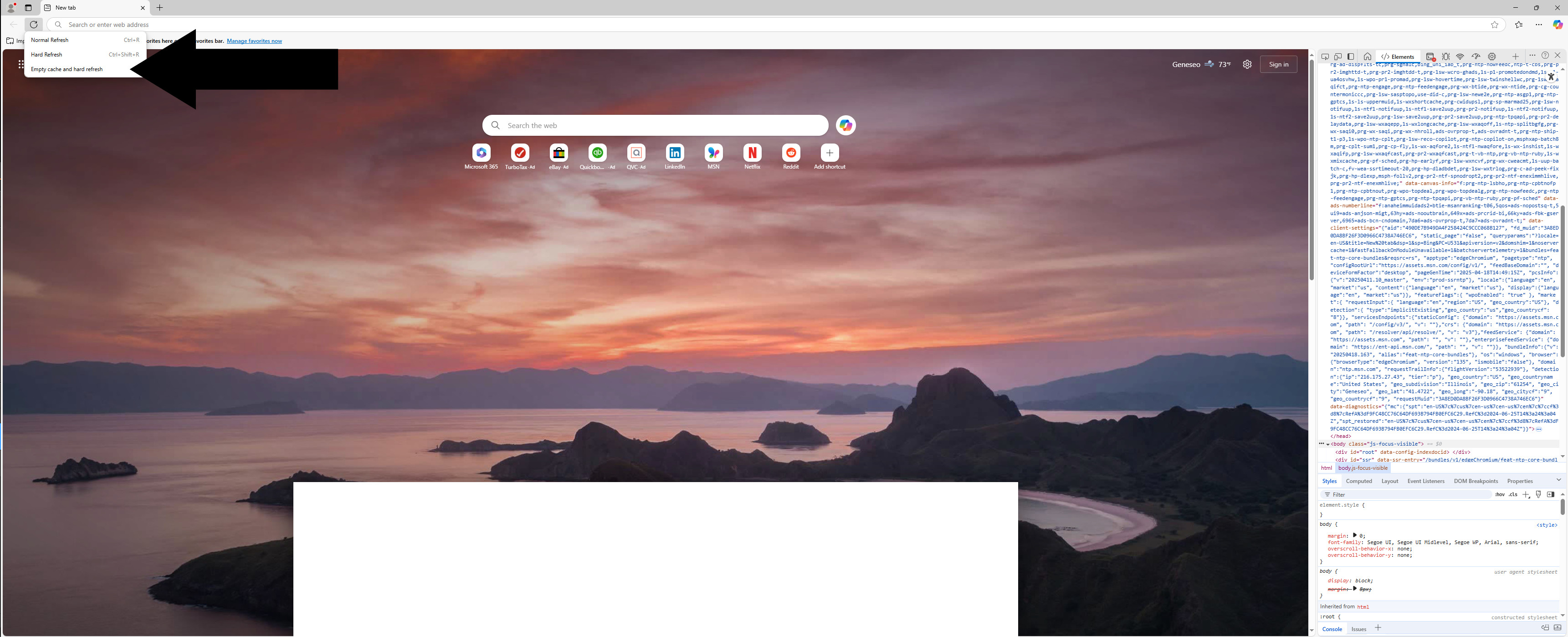
The final step is to click and hold the refresh button in the top-left corner of the browser.
This will bring up options for reloading. Click on "Empty Cache and Hard Reload."
Chrome:
Edge:
That's it! You've just emptied the browser cache for the site you were on.